VRChat

Elma (エルマ, Eruma) VRChat Full Body Tracking 3D Model

  • ダウンロード商品
    ¥ 4,100

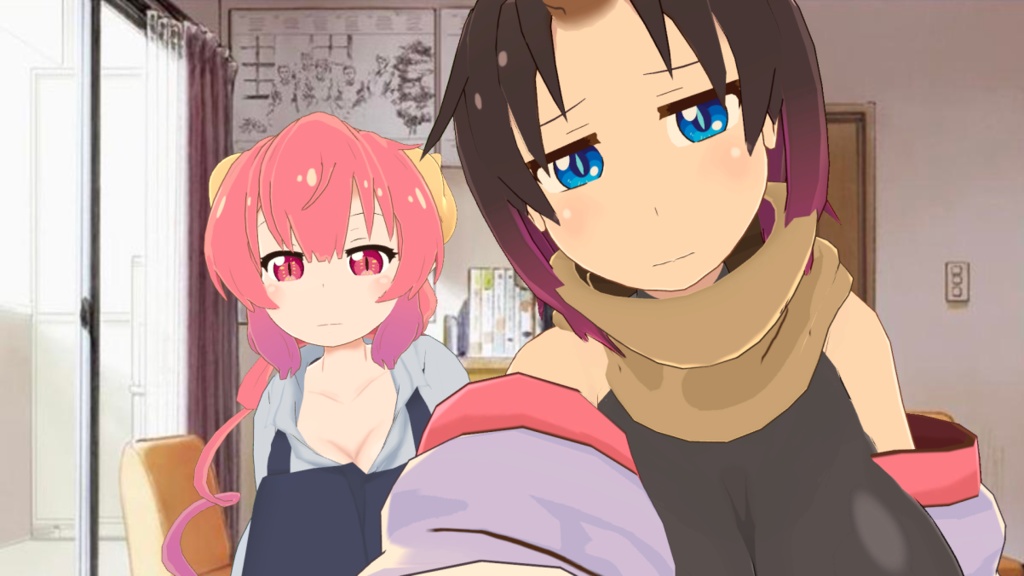
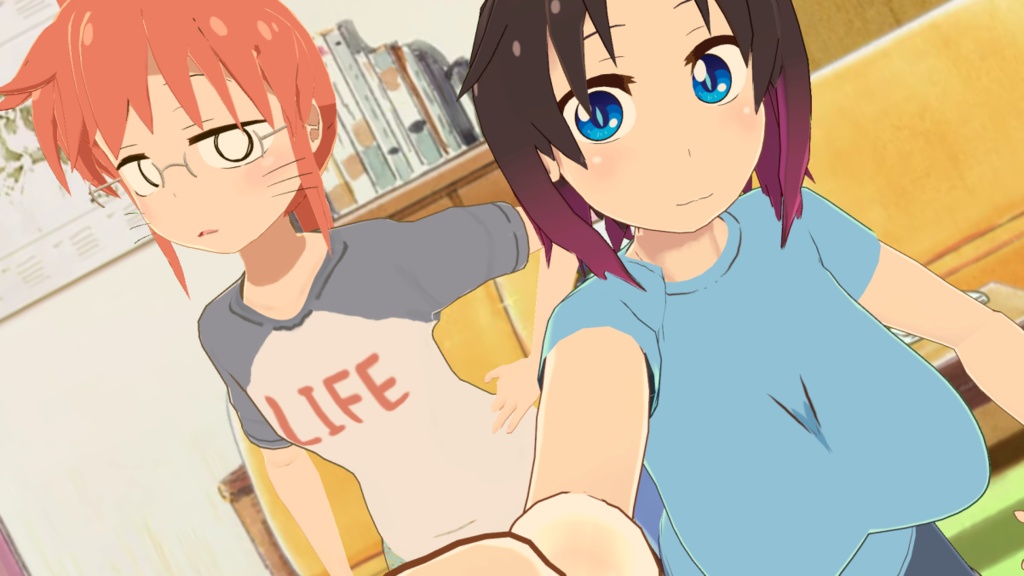
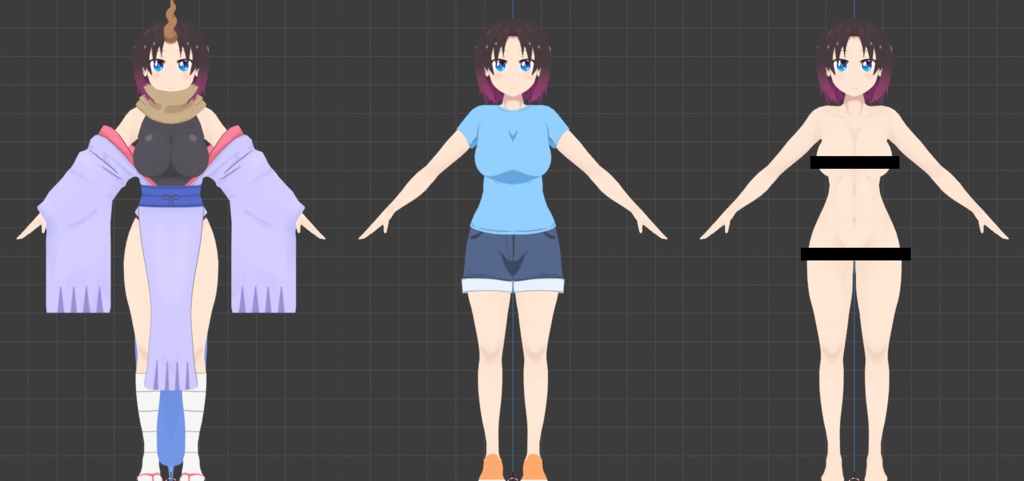
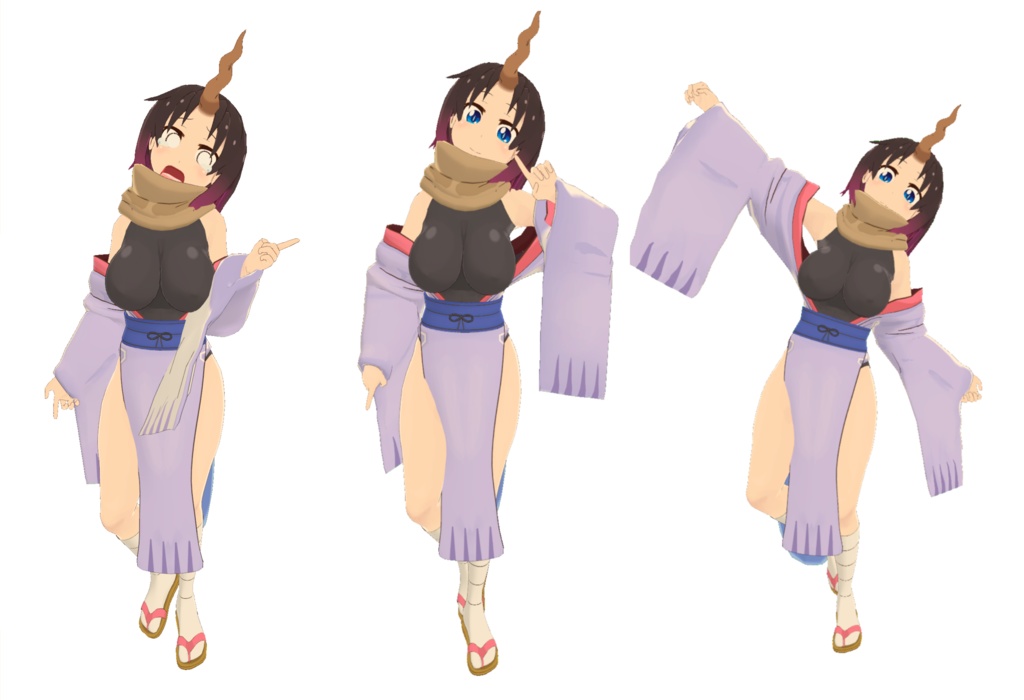
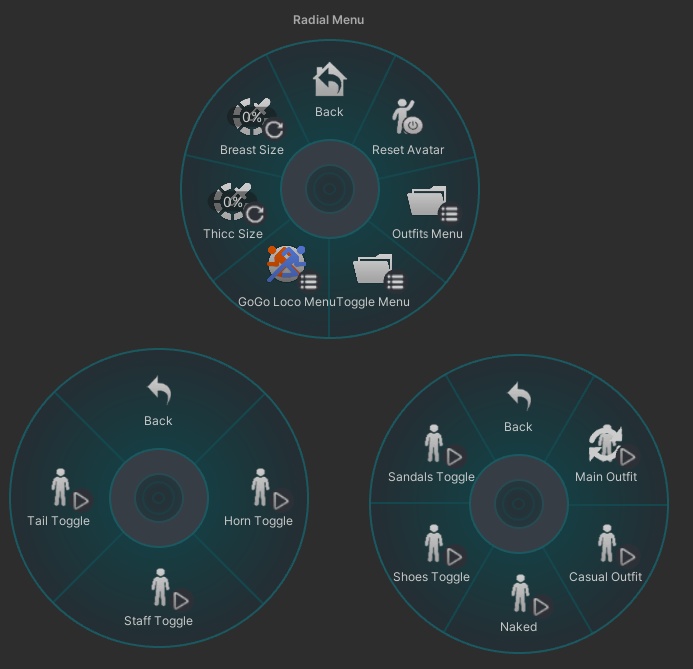
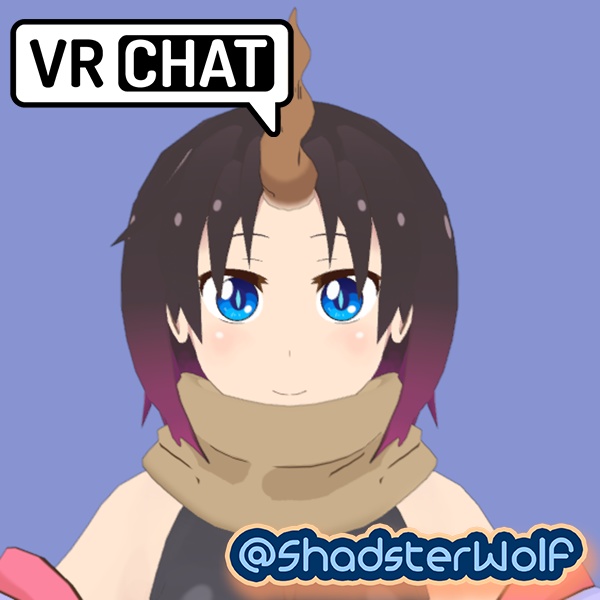
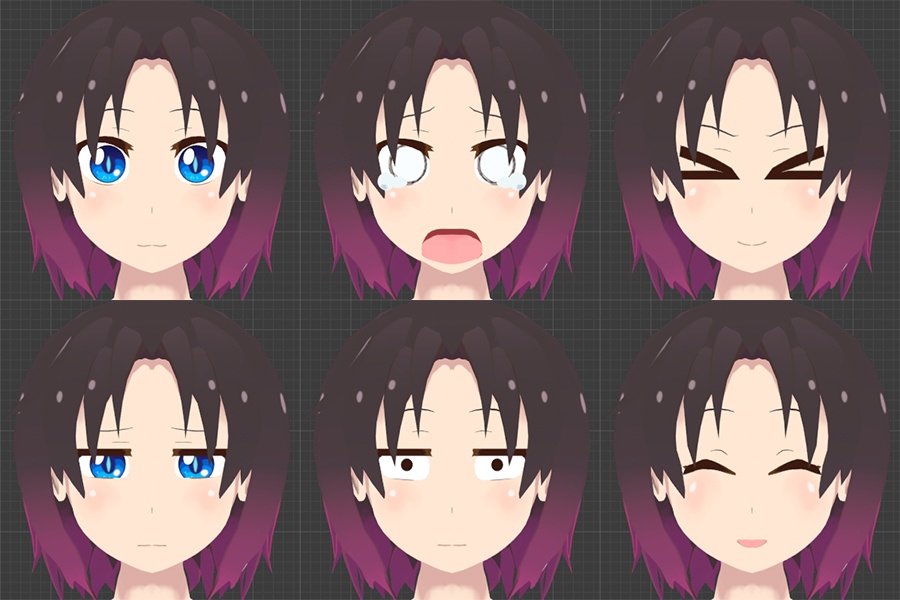
Elma (エルマ, Eruma) 3D Model, inspired by the anime Miss Kobayashi's Dragon Maid Designed specifically for VRChat! NSFW Model! --Model Specs & Features-- PC & Quest support Physbones 60k polys 2 Materials Full Body Tracking 6 Custom Facial Gestures 2 Outfits Viseme Support Breast Size Slider Thicc Size Slider Toggle Shoes/Sandals Toggle Staff Toggle Tail SDK3 (+ Unity 2022) Gogo Loco (1.8.1) w/Fly Poiyomi Toon Shader 8.1 Independent Body mesh and Clothing --Changelog-- 1.0.1 - Minor fixes before release 1.0.2 - Fixed Tail Sway not working, Fixed idle blinking, updated Prefabs 1.1.0 - Added Taiyaki and mouth PhysContact, Added new expression, Updated Gogo Loco 1.7.6 for scale slider, Adjusted Happy emote, fixed outfit interior 1.2.0 - Updated Gogo Loco 1.8.1 with Fly 1.3.0 - 2022.3.6f1 Repack, Fixed gesture expression locking issue for some VR controllers 1.3.1 - Fixed upload glitch caused by FX controller having a null/invalid layer 1.4.0 - Updated GogoLoco to 1.8.6, added VRCfury scene with Wholesome config --Files Included-- Blender Raw File (3.6.5) Textures (PNG only, I don't have any layered files) Unity Package (2022.3.6f1) with Scene, FBX, animations, and effects. All setup and ready for upload! --Instructions for VRChat PC-- 1. Download Unity Hub: https://unity.com/download 2. Make a new Avatar project with VRChat Creator Companion (VCC) https://vrchat.com/home/download 3. (Optional) Import Poiyomi Toon Shader (8.1): https://github.com/poiyomi/PoiyomiToonShader/releases 4. Import my provided .unitypackage file Open Avatar.scene, login using the VRchat SDK, build & upload! --Instructions for VRChat Quest (Cont.)-- 1. Copy the Avatar ID that generated after uploading to PC (In the VRChat SDK, click on the Content Manager tab, you'll see "Copy ID") 2. Click on the _Quest avatar and attach/paste the Avatar ID (In the Inspector, on the Pipeline Manager component, you'll see "Blueprint ID", then click Attach) 3. Click on File > Build Settings... > Android > Switch Platform (Delete _PoiyomiShaders folder if you imported to help speed up the process) 4. Open the VRChat SDK and build & upload again! (If "Build & Publish for Android" is gray, delete/inactive the PC avatar) **Please do not make public** **Please do not redistribute** --Contact-- Twitter: https://twitter.com/Shadsterwolf すみません、にほんご はなせません。(╯°□°)╯︵ ┻━┻
Elma (エルマ, Eruma) VRChat Full Body Tracking 3D Model
Elma (エルマ, Eruma) 3D Model, inspired by the anime Miss Kobayashi's Dragon Maid Designed specifically for VRChat! NSFW Model! --Model Specs & Features-- PC & Quest support Physbones 60k polys 2 Materials Full Body Tracking 6 Custom Facial Gestures 2 Outfits Viseme Support Breast Size Slider Thicc Size Slider Toggle Shoes/Sandals Toggle Staff Toggle Tail SDK3 (+ Unity 2022) Gogo Loco (1.8.1) w/Fly Poiyomi Toon Shader 8.1 Independent Body mesh and Clothing --Changelog-- 1.0.1 - Minor fixes before release 1.0.2 - Fixed Tail Sway not working, Fixed idle blinking, updated Prefabs 1.1.0 - Added Taiyaki and mouth PhysContact, Added new expression, Updated Gogo Loco 1.7.6 for scale slider, Adjusted Happy emote, fixed outfit interior 1.2.0 - Updated Gogo Loco 1.8.1 with Fly 1.3.0 - 2022.3.6f1 Repack, Fixed gesture expression locking issue for some VR controllers 1.3.1 - Fixed upload glitch caused by FX controller having a null/invalid layer 1.4.0 - Updated GogoLoco to 1.8.6, added VRCfury scene with Wholesome config --Files Included-- Blender Raw File (3.6.5) Textures (PNG only, I don't have any layered files) Unity Package (2022.3.6f1) with Scene, FBX, animations, and effects. All setup and ready for upload! --Instructions for VRChat PC-- 1. Download Unity Hub: https://unity.com/download 2. Make a new Avatar project with VRChat Creator Companion (VCC) https://vrchat.com/home/download 3. (Optional) Import Poiyomi Toon Shader (8.1): https://github.com/poiyomi/PoiyomiToonShader/releases 4. Import my provided .unitypackage file Open Avatar.scene, login using the VRchat SDK, build & upload! --Instructions for VRChat Quest (Cont.)-- 1. Copy the Avatar ID that generated after uploading to PC (In the VRChat SDK, click on the Content Manager tab, you'll see "Copy ID") 2. Click on the _Quest avatar and attach/paste the Avatar ID (In the Inspector, on the Pipeline Manager component, you'll see "Blueprint ID", then click Attach) 3. Click on File > Build Settings... > Android > Switch Platform (Delete _PoiyomiShaders folder if you imported to help speed up the process) 4. Open the VRChat SDK and build & upload again! (If "Build & Publish for Android" is gray, delete/inactive the PC avatar) **Please do not make public** **Please do not redistribute** --Contact-- Twitter: https://twitter.com/Shadsterwolf すみません、にほんご はなせません。(╯°□°)╯︵ ┻━┻